Payment links: How to accept payments without a webshop

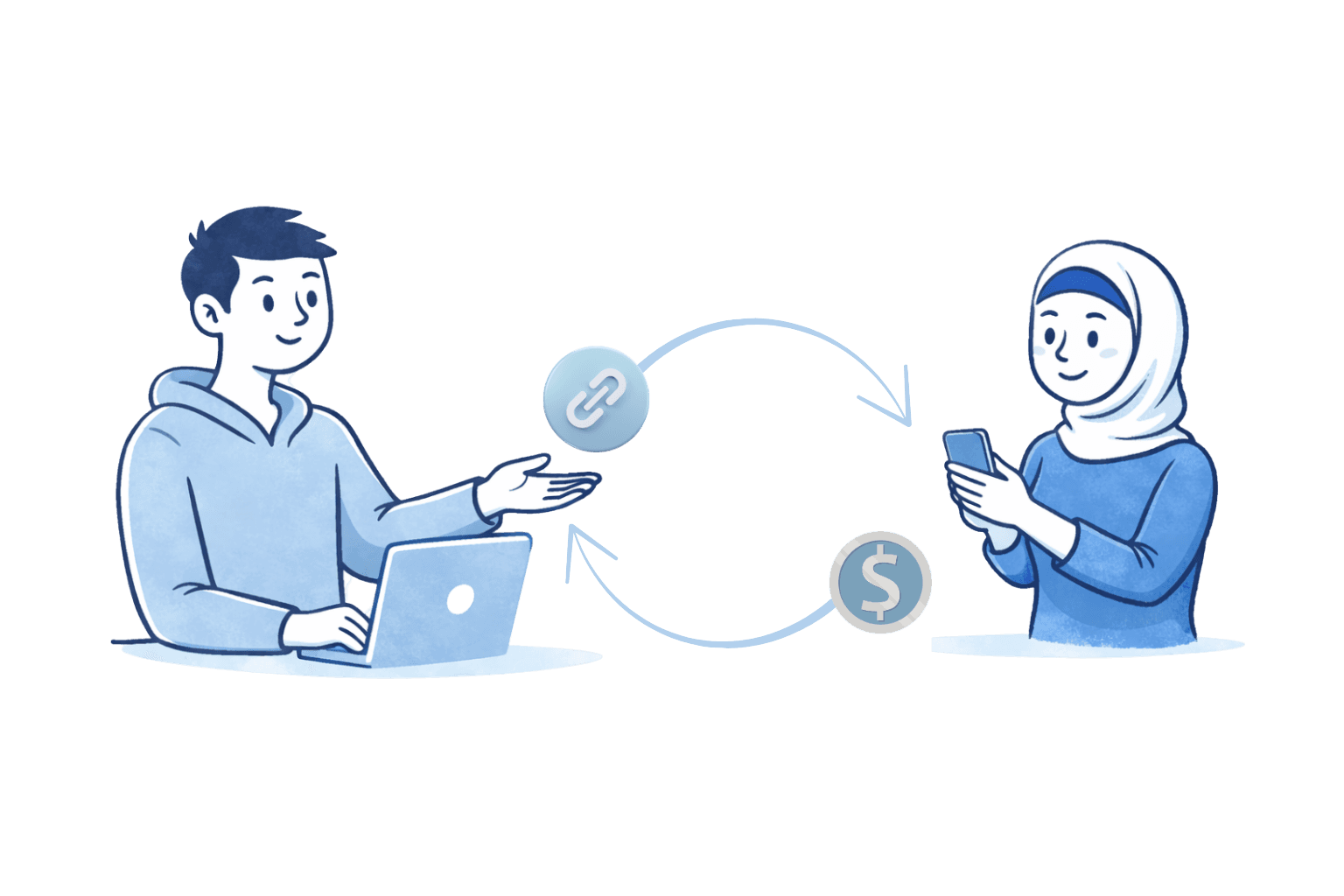
You have just made a deal with a customer, and now the payment needs to be sorted. Maybe it is an invoice, a deposit, or just a quick order that came in by email or phone. The customer wants to pay, you want the money, but there is no checkout for them to go through.
So you send an invoice. And wait. Just like people did in 1998.
This is where payment links come in. Instead of the customer having to figure it out themselves, you send them a link. They click and pay. It takes less than a minute.
With ePay Link, you create the link directly in our Back Office, or via API if you want it to happen automatically. You enter the amount, send the link, and can follow in real time whether the customer has opened it and completed the payment.
Simple. And it works.

Follow the status of your payment links
When your customer opens a payment link, they land directly in your payment window - they choose a payment method and pay straight away by card, MobilePay, Apple Pay or Google Pay.
Why use payment links?
Not all payments fit into a webshop. It could be an invoice payment, a deposit for a trip, or you might be in the middle of some dialogue-based upselling. In those situations, it is frankly cumbersome to send the customer through a webshop, or, heaven forbid, send an old-fashioned invoice for payment.
This is where payment links can make the process simpler and more natural. The customer does not have to go searching for the right product or navigate through online banking. A few examples of when it makes sense:
- A travel agency sends a deposit link directly in the email thread, so the payment is in place before the booking is confirmed.
- A consultant finishes a meeting and sends the payment link the same day - the customer pays when it suits them.
- A supplier with regular customers sends a link with each order instead of waiting for bank transfers.
Once the customer has received the link, they have 60 days to pay by default. You can of course adjust this to fit your setup.
At the same time, you can generate it as a QR code if you are face to face with the customer, for example. They scan the QR code, choose their payment method and approve. No runaround!
This is particularly useful if you sell at trade fairs, in pop-up settings or on-site with the customer. Instead of fumbling around with a terminal, you simply print or display your QR code.
How to get started
ePay Link is included in the Grow and Enterprise plans - you do not pay extra for it.
Links can be created in two different ways:
Create it yourself (Back Office)
You enter the amount, click 'Create link' and send it to the customer. That is all there is to it. Perfect for a deal that has just landed, a quick order or an additional payment.
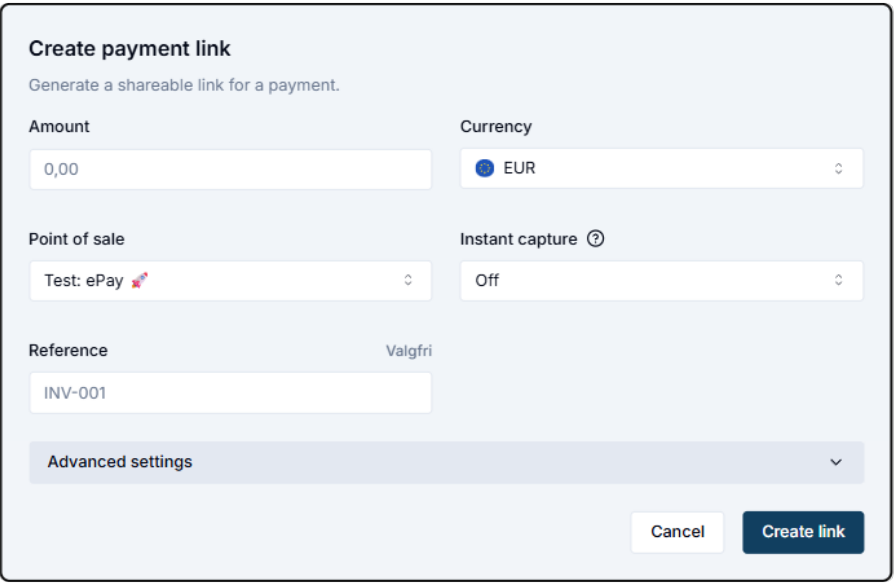
Enter the amount and create a link - it is that simple
Let the system do the work (API)
If you want to avoid creating links manually every time, you can automate it via API. This does of course require that you set up the integration first, either yourself or with a developer.
Once that is in place, your invoicing, booking or CRM system can automatically create and send payment links to the customer. So instead of doing it manually every time, it runs in the background.
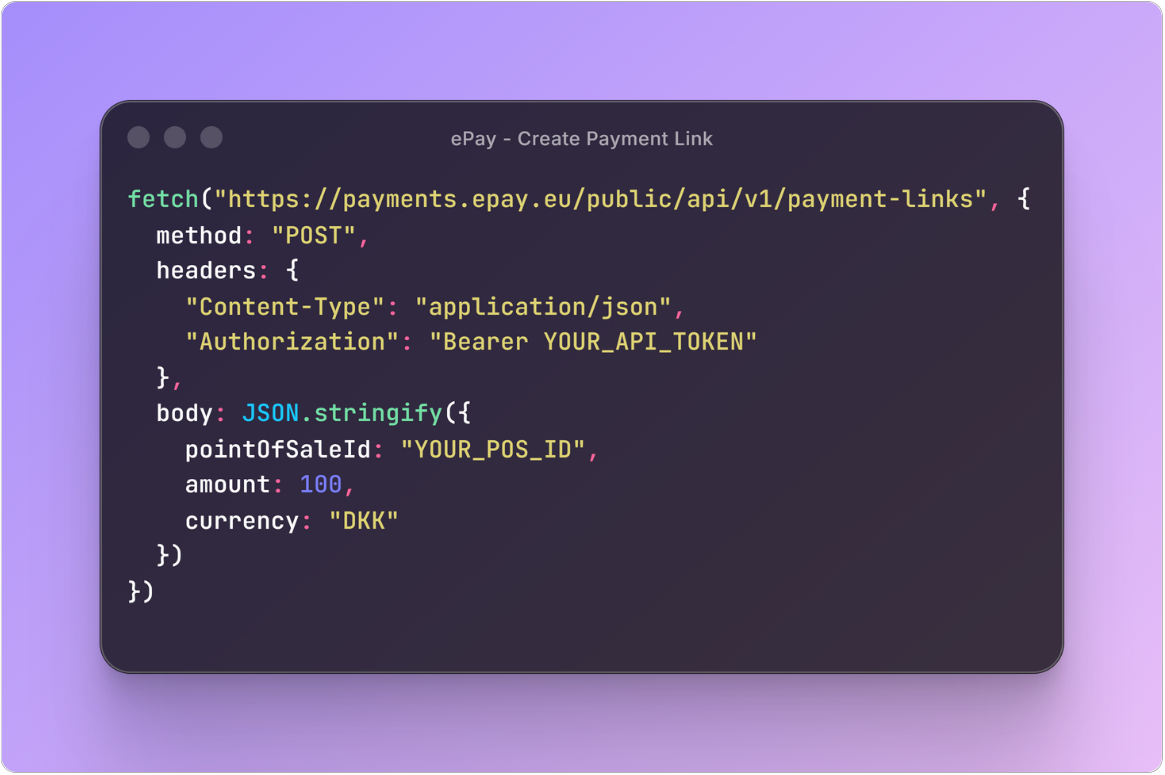
Automate link payments via API
See more in the documentation here: https://docs.epay.eu/api/create-payment-link
Ready to send your first payment link?
Create a free test account and try it yourself. You can create links, send them to yourself and test the whole thing as many times as you like before going live. Next time a deal lands in your inbox, you do not need to send an invoice and cross your fingers. Send a link instead.
Create a free test account here: Create account